Compare the difference
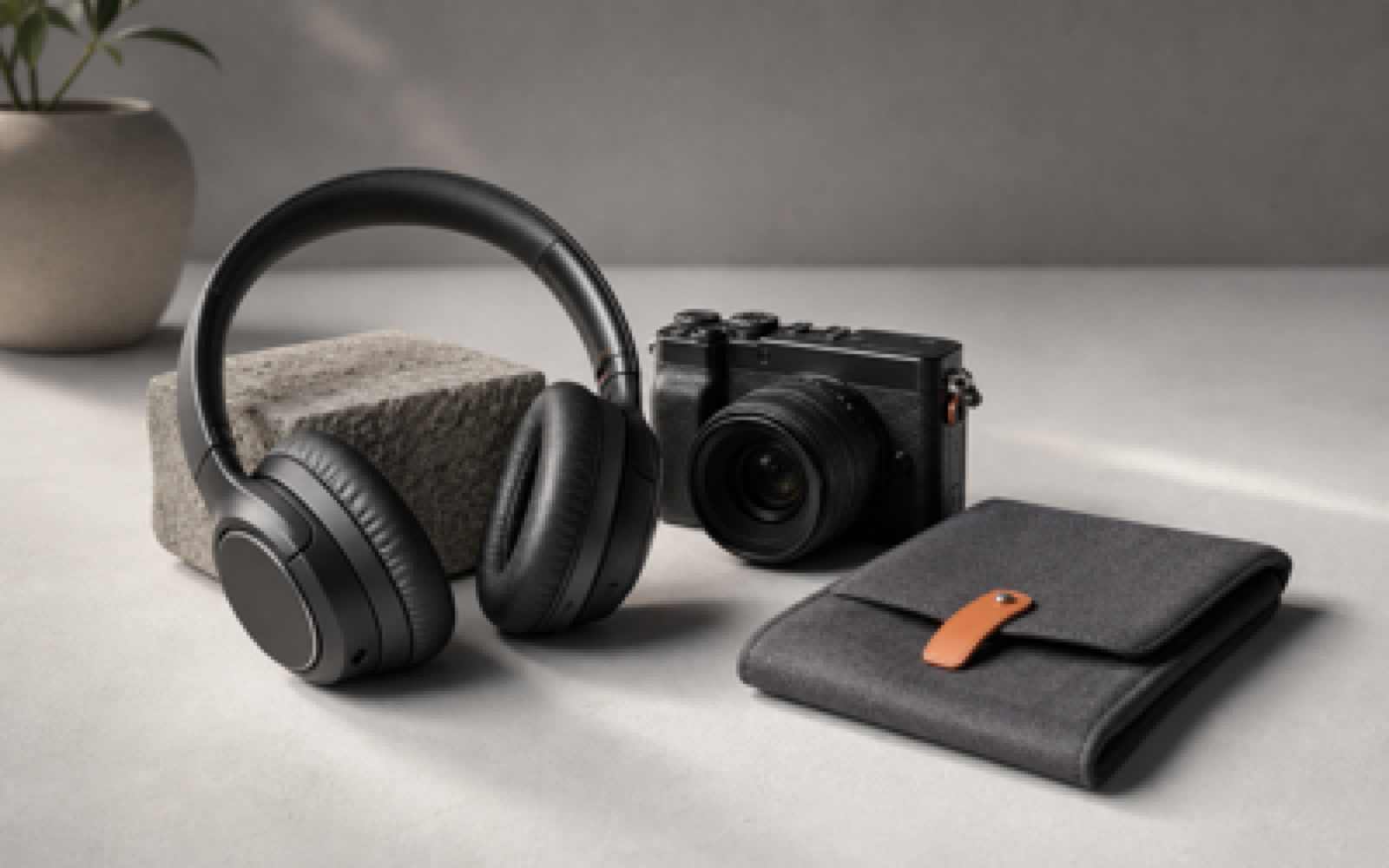
Before and after
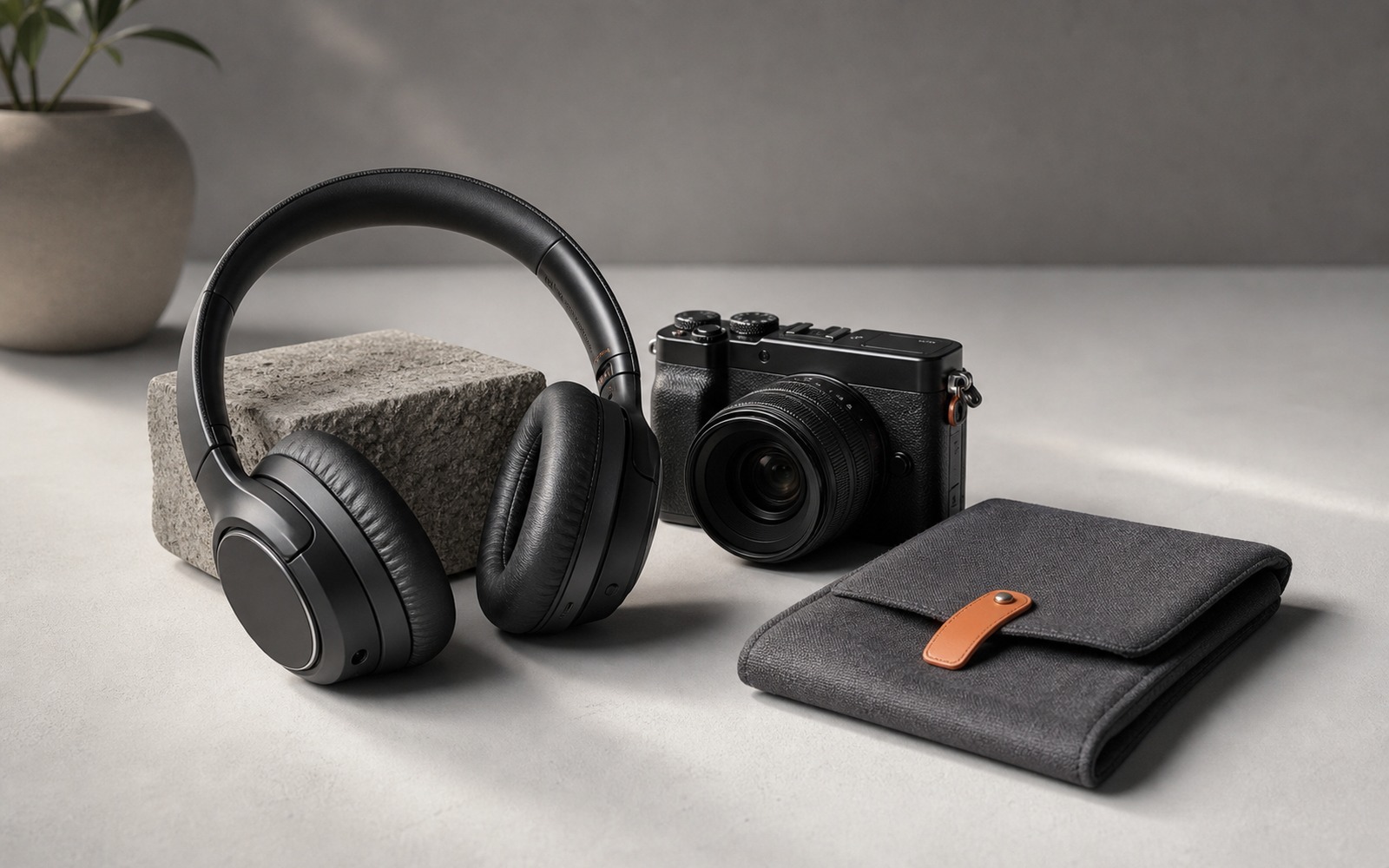
Before
After
50% off annual50% off yearly GPT Image 2 credits
Upload a low-resolution image and turn it into a sharper, larger version in seconds. GPT Image 2 AI Image Upscaler helps product photos, portraits, AI artwork, thumbnails, and social graphics look clearer without opening desktop editing software.
Compare the difference
Upload, drop, paste, or choose from My Creations. Upscaling starts automatically after your image is ready.
How to upscale
Use this AI image upscaler when a visual is worth keeping but too small, soft, or compressed for the place you need to publish it.
Choose a product photo, portrait, AI artwork, thumbnail, social graphic, or design export from your device, clipboard, drag and drop, or My Creations.
The upscaler creates a larger version while improving perceived detail, edge definition, and texture clarity without rebuilding the composition.
Use the before and after preview to check sharpness, artifacts, and small details, then download the enhanced image for publishing.
Use cases
Search users often need to fix a specific asset, not read a generic feature list. These are the common jobs this image upscaler is built to support.
Enlarge small product photos for ecommerce listings, marketplace pages, ads, comparison images, and catalogs where soft edges can reduce trust.
Sharpen portraits, headshots, profile pictures, creator avatars, and team photos before placing them on resumes, bios, landing pages, or social accounts.
Upscale AI artwork, character concepts, style tests, and generated image collections when the best draft is too small for a final export.
Improve thumbnails, banners, posts, ad creatives, and cover graphics so text, products, and faces stay clearer on larger screens.
Prepare screenshots, mockups, landing page images, deck visuals, and hero graphics when the original asset looks blurry in layout.
Upload multiple low-resolution images when a campaign, product set, creator library, or generated collection needs consistent sharpening.
Examples
These visual examples show the kinds of assets people commonly need to enlarge before publishing, from product details to portraits and whole campaign batches.

Enlarge small product close-ups while improving edge clarity, material texture, and perceived detail for ecommerce or catalog layouts.

Improve a soft profile image before using it on bios, team pages, resumes, social profiles, or creator pages.

Prepare product photos, portraits, AI art, thumbnails, website visuals, and presentation images in one consistent workflow.
No desktop setup
Use this online AI image upscaler when you do not want to open desktop editing software just to enlarge a small image, sharpen a social graphic, or prepare a product photo for a larger layout. Photoshop and other editors are still useful for advanced retouching, masking, and layered design work, but a browser upscaler is faster for straightforward image enlargement.
Output
GPT Image 2 Image Upscaler is built for practical enlargement. It keeps the original image content and produces a sharper, larger result for ecommerce, social media, presentations, AI art, and design layouts. Use the comparison preview to inspect details before you download.
Batch workflow
When you need more than one enhanced image, upload a batch instead of repeating the same process one file at a time. Batch image upscaling helps keep product listings, campaign assets, AI art collections, and social media libraries consistent.
Better results
AI upscaling can improve many images, but the source still matters. Start with the cleanest version you have when the final asset is important.
A sharper input gives the upscaler more real detail to preserve and reduces the chance of artificial-looking textures.
Very blurry photos, noisy screenshots, and heavily compressed files can still show artifacts after enlargement.
Small typography, eyes, logos, and fine product edges are the details most worth reviewing before publishing.
Upscaling improves perceived clarity, but it cannot perfectly recover information that was never visible in the original file.
Use the before and after control to decide whether the enhanced version is clean enough for your target channel.
FAQ
An AI image upscaler enlarges an image and improves perceived detail so a small or soft visual can be used at a larger size. It is useful for product photos, portraits, AI art, social posts, thumbnails, and presentation graphics.
Upload, drop, paste, or select an image from My Creations. The tool sends the file for AI image upscaling, shows progress, then returns an enhanced result you can compare against the original before downloading.
You can enlarge an image with better perceived quality, but no upscaler can perfectly invent every missing detail. Start with the cleanest source image and review faces, text, logos, and edges before using the result.
You can upload common browser-supported image formats such as JPG, PNG, and WebP. For the best result, use a clean source image with enough visible detail and avoid files that are extremely compressed or heavily blurred.
Yes. Image Upscaler can help enlarge and sharpen product photos for ecommerce listings, marketplace images, ads, catalogs, and comparison graphics. Always inspect small labels, edges, and material texture before publishing.
Yes. AI image upscaling is useful when a generated image has the right composition but is too small for a final export. Review fine details after upscaling, especially hands, faces, text, and patterned areas.
Yes. You can upload multiple images in one batch, up to the current batch limit shown on the page. Each image is processed as its own task, so one failed item does not block the rest.
Upscaling can make a soft image look clearer, but it cannot fully repair severe motion blur, missing focus, heavy noise, or unreadable text. For important work, compare the before and after result before downloading.
The goal is to preserve the original composition while improving clarity and size. Very low-quality inputs may still show artifacts or texture changes, so use the before and after comparison before publishing.
Image Upscaler uses 3 credits per image. A 10-image batch uses 30 credits, and failed tasks are refunded when the backend confirms failure.
Yes. Upscaled images can be used for social graphics, thumbnails, website sections, slide decks, mockups, and marketing layouts. Check the final dimensions and visual quality against the platform where you plan to publish.
Yes. You can use Image Upscaler in the browser when you only need to enlarge and sharpen an image. Photoshop and other desktop editors are better for advanced retouching, layered edits, and manual design work.
Next steps
Create transparent PNG cutouts after your image is sharp enough to publish.
Try nowView pricingCheck credit packs and plan options before processing a larger batch.
Try nowOpen My CreationsChoose finished images from your creation history and process them again.
Try nowTry the AI image generatorCreate new visuals from a prompt, then upscale the strongest result.
Try now