Production guide
How to Use GPT Image 2: A Production Workflow for Better AI Images
GPT Image 2 is most useful when you treat it like a repeatable creative workflow. Start with the business outcome, generate several candidates, pick one strong anchor image, refine it with plain-language edits, then check the asset against the channel where it will be used.
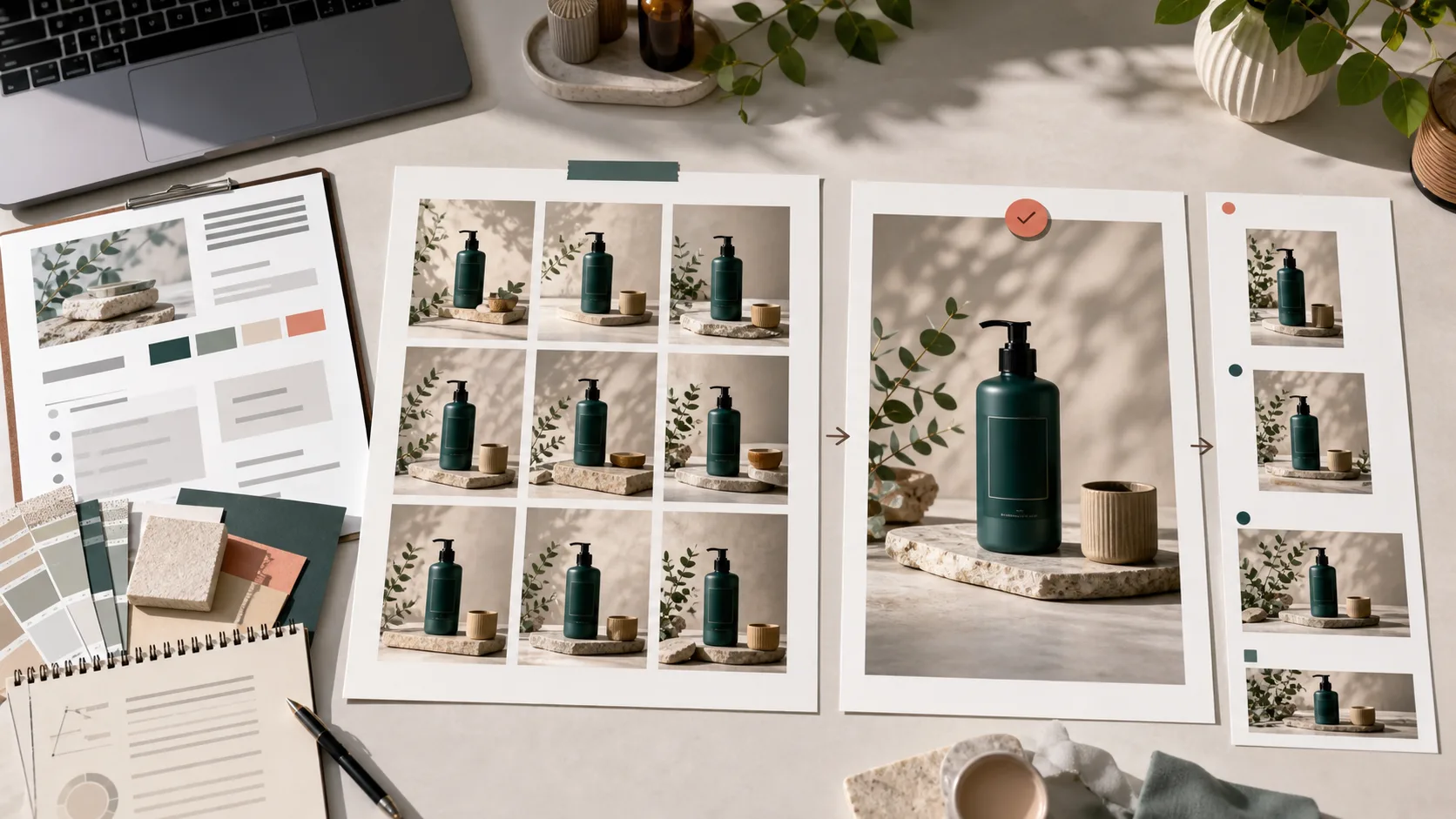
What is the best way to use GPT Image 2?
The best way to use GPT Image 2 is to work in stages: define the image goal, write a prompt with subject, context, composition, style, constraints, and output format, generate a small candidate set, choose the strongest image, edit it with natural language, and run a final review for accuracy, brand fit, and export size.
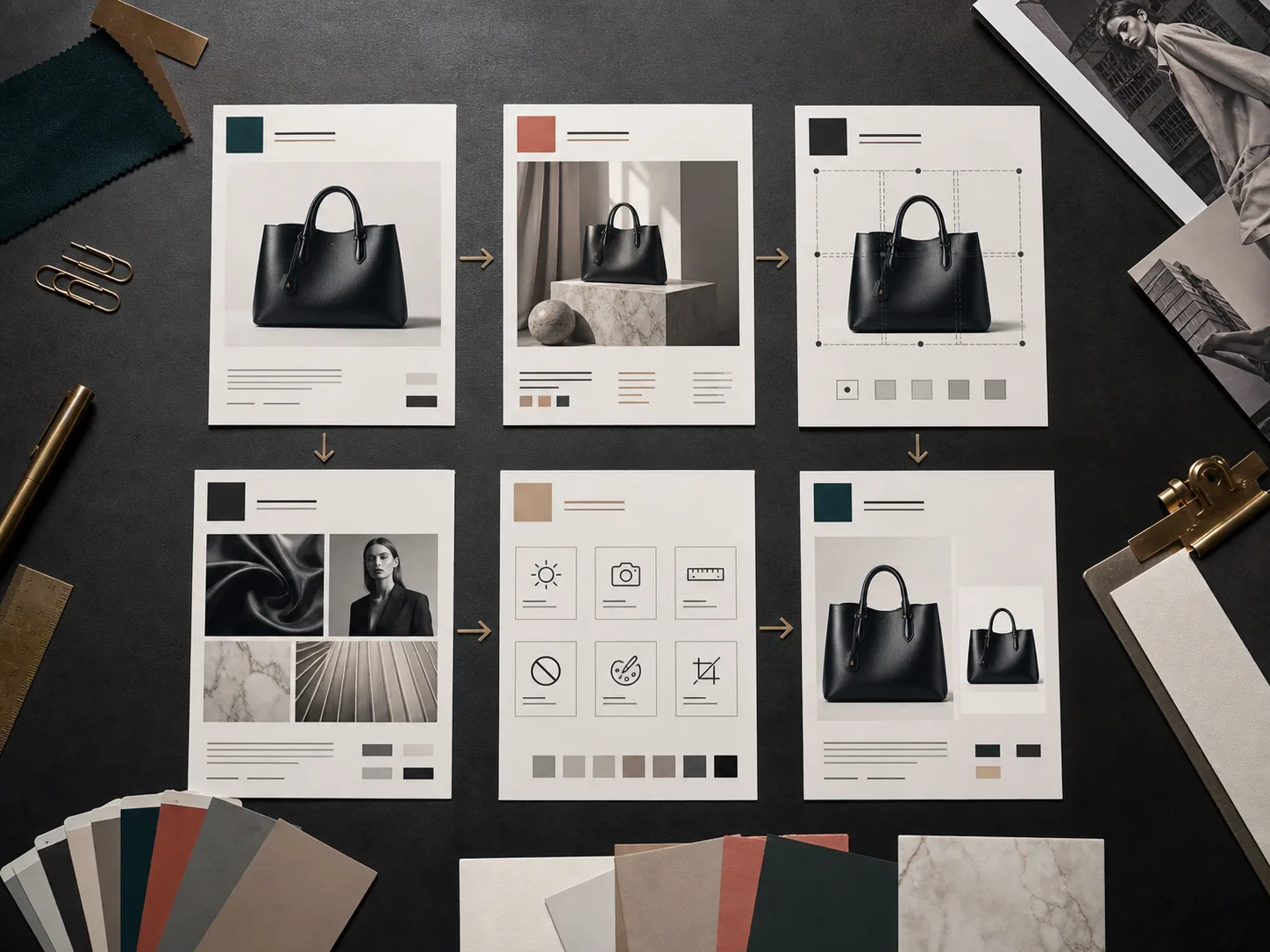
Use it like a production system, not a single prompt
One-shot prompting can be fun, but teams usually need repeatability. A campaign manager cares about refresh cadence, an ecommerce lead cares about product accuracy, and a designer cares about composition and retouching control. The workflow below keeps those needs visible instead of hiding them inside a long prompt.
Prompt anatomy that GPT Image 2 can act on
A useful prompt is not necessarily long. It is explicit about the decisions that affect the final asset. When a prompt names the subject, use case, composition, style, constraints, and output format, review becomes easier because every revision can target one layer at a time.
Subject
- Role
- Name the main object, person, scene, or product that must remain recognizable.
- Example
- A matte ceramic travel mug with a teal base and cream top.
Context
- Role
- Explain why the image exists and where the viewer will see it.
- Example
- For an ecommerce product detail page and paid social launch.
Composition
- Role
- Specify crop, angle, framing, negative space, and what should be foregrounded.
- Example
- Three-quarter product angle, center-right placement, room for copy on the left.
Style
- Role
- Describe the visual language without stacking incompatible aesthetics.
- Example
- Premium studio lifestyle photography, soft daylight, realistic shadows.
Constraints
- Role
- Tell the model what must not change or appear.
- Example
- No logos, no extra text, keep the product shape and lid color consistent.
Output
- Role
- State aspect ratio, channel, series needs, and final use.
- Example
- Create a 4:5 hero image and a square crop for social variants.
Visual workflow examples
These local assets show the workflow this guide recommends: create options, define the prompt anatomy, refine through edits, and prepare images for the channel.
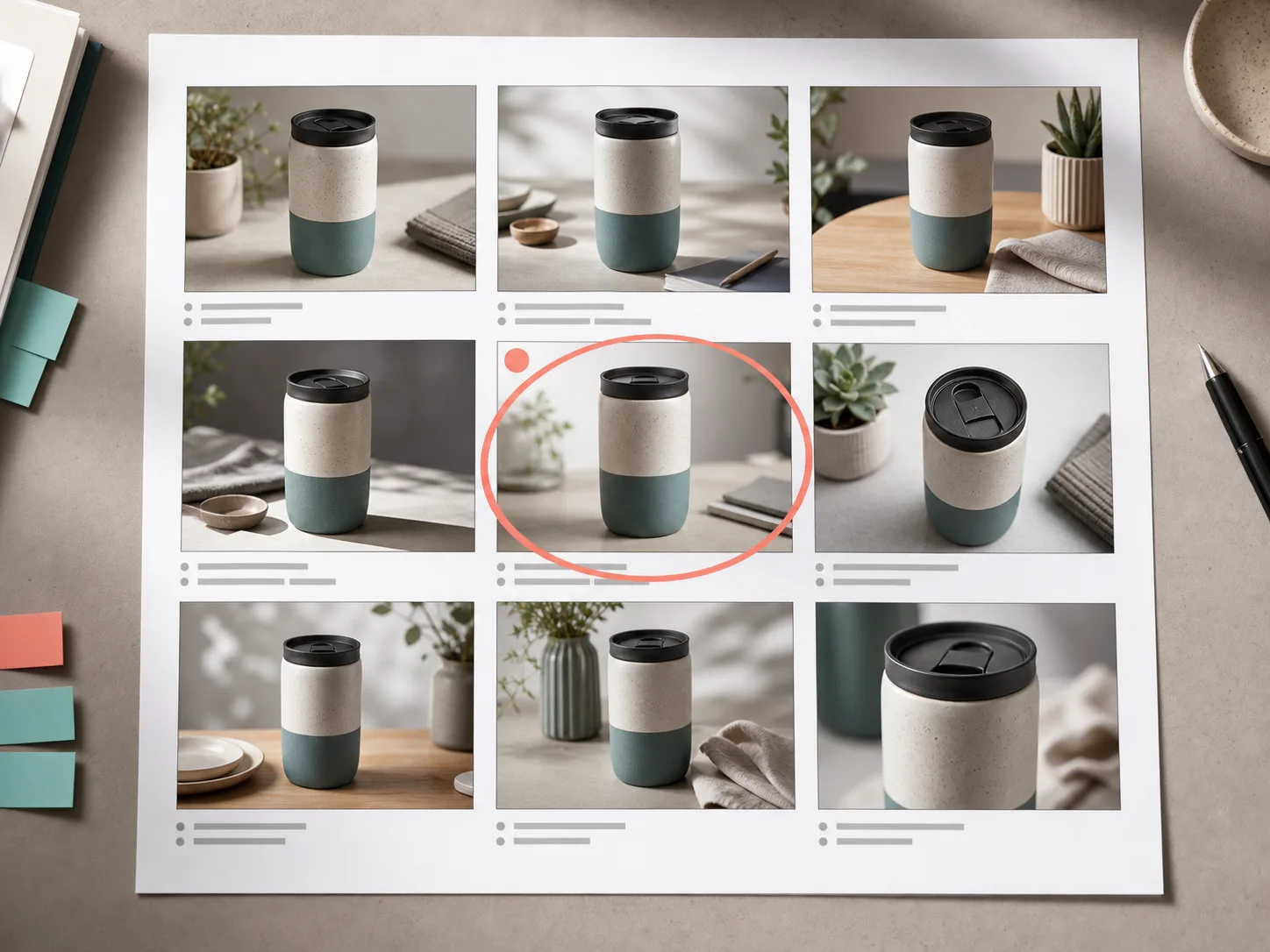
Candidate grid
Generate several versions, then select one anchor image for refinement instead of chasing every detail at once.
Prompt anatomy
Break the prompt into decision layers so each review comment maps to a concrete change.
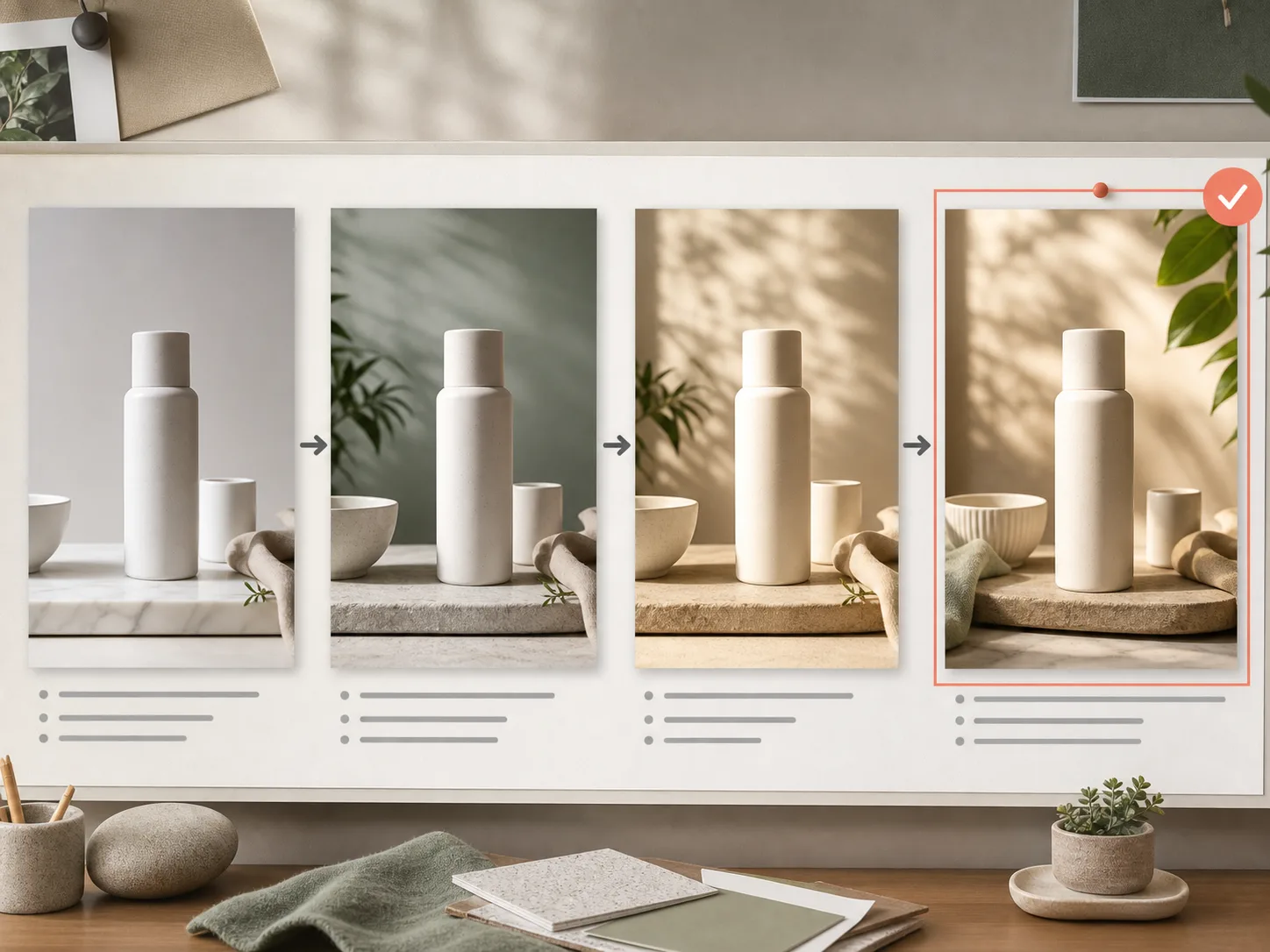
Edit sequence
Move from a rough product shot to a polished lifestyle image by editing background, light, and composition in order.
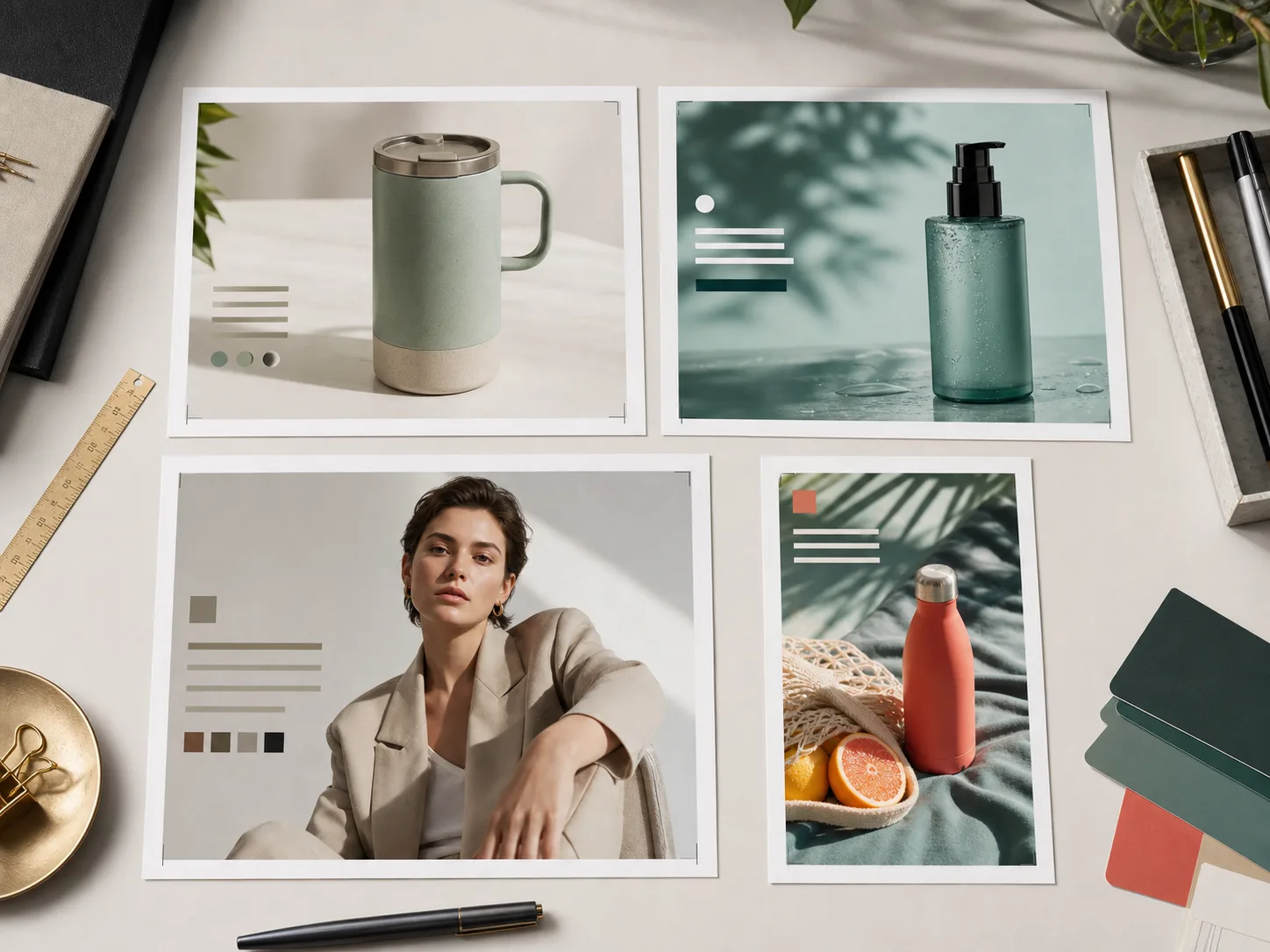
Channel-ready outputs
Prepare distinct crops for ecommerce, paid social, editorial, and vertical social formats.
A six-step workflow for consistent results
The strongest GPT Image 2 workflows separate exploration from approval. Generate enough variety to compare, then narrow the image into a controlled asset that can be edited, reused, or converted into video later.
Define the outcome before the image
Start with the job the image must do: sell a product, explain a feature, refresh a paid social concept, support a blog, or become a reference frame for video. This keeps the prompt grounded in business use instead of style words alone.
Write a production prompt
Combine subject, context, composition, style, constraints, and output format. If the product, person, or layout must remain stable, say so directly. Avoid asking for five visual styles at once.
Generate a candidate grid
Ask for multiple directions or create several runs. Compare them for product accuracy, pose, lighting, crop, brand tone, and usefulness. Pick one anchor image instead of trying to merge every favorite detail.
Refine with natural-language edits
Edit one layer at a time: background, lighting, color, crop, object placement, or typography. Short edit instructions usually outperform full prompt rewrites because they protect the parts already working.
Run a QA pass
Check hands, faces, product labels, spelling, proportions, reflections, claims, safety, and cultural context. For commercial assets, confirm that the image matches the landing page, offer, and audience.
Export and reuse the system
Save the final prompt, seed notes, reference image, approved crop, and edit history. That record lets teams build image series, refresh creative without starting over, and hand off assets for video or design production.
Practical prompt examples
Use these examples as production briefs, not magic words. Replace the product, audience, channel, and constraints with your own details, then iterate one change at a time.
Ecommerce product page
Create a premium ecommerce hero image for a matte ceramic travel mug. Show the product at a three-quarter angle on a warm stone surface with soft daylight, realistic shadows, and enough negative space for a product benefit line. Keep the shape, lid, and two-tone color consistent. No logos, no readable text, no extra products.
It defines the channel, product invariants, lighting, composition, and exclusions, so revisions can focus on product accuracy rather than broad style drift.
Paid social creative refresh
Create four visual directions for a skincare launch aimed at busy professionals. Each direction should use the same unlabeled teal pump bottle, but vary the setting: clean bathroom shelf, morning desk, gym bag flat lay, and travel pouch. Premium realistic photography, 4:5 crop, no brand names.
It asks for controlled variation, which is useful when performance teams need new hooks without changing the offer or product identity.
Editorial portrait
Create a refined editorial portrait of a creative director in a neutral linen suit, seated near a studio window, confident but approachable expression, soft directional light, muted background, natural skin texture, no celebrity likeness, no logos.
The prompt frames identity, mood, wardrobe, lighting, and safety constraints while leaving room for a natural portrait.
Social thumbnail
Create a vertical 9:16 thumbnail for a short tutorial about turning a prompt into a polished product image. Show a product contact sheet, selected final frame, and simple crop marks as physical paper on a desk. No readable text, no software interface.
It communicates the story visually and avoids fake UI or unreadable in-image typography.
Reference-image edit
Use the uploaded product photo as the exact product reference. Change only the environment to a bright kitchen counter with morning light, keep the product geometry, color, cap, and label area unchanged, and produce a realistic 1:1 crop for a marketplace listing.
It separates the invariant product from the editable environment, which is the key to useful image editing.
Troubleshooting common GPT Image 2 issues
Most weak outputs come from an unclear goal, too many competing style requests, or missing review constraints. Fix the prompt layer that failed instead of rewriting everything.
The image looks attractive but does not fit the campaign.
- Likely cause
- The prompt described style but not business context.
- Fix
- Add the channel, audience, offer, and required crop before describing aesthetics.
Product details keep changing.
- Likely cause
- The model is treating the product as a concept instead of a fixed object.
- Fix
- Use a reference image where possible and list the parts that must stay unchanged.
Text in the image is unstable.
- Likely cause
- Too much copy is being embedded inside the generation.
- Fix
- Keep generated images mostly text-free, then add precise copy in design software if accuracy matters.
The series does not feel consistent.
- Likely cause
- Each prompt changes lighting, lens, background, or art direction.
- Fix
- Create a shared style brief and vary only the scene or offer hook.
The subject is cropped awkwardly.
- Likely cause
- The prompt did not specify final aspect ratio or safe area.
- Fix
- Name the channel crop and request extra negative space around important objects.
The result feels over-stylized.
- Likely cause
- The prompt stacks too many art styles and adjectives.
- Fix
- Use one primary visual language, then describe concrete lighting, material, and camera choices.
Industry workflows and customer problems solved
The value of GPT Image 2 is not simply that it creates images quickly. The value is that it can reduce the distance between a business question and a usable visual test.
Ecommerce product imaging
- Customer problem
- Teams need new PDP, marketplace, and social images for many SKUs, but traditional reshoots are slow and expensive.
- Workflow
- Generate candidate product scenes, approve one anchor image, edit background and lighting, then export channel-specific crops.
- Outcome
- More variants reach testing, reshoots are reserved for high-risk hero assets, and product teams can respond faster to seasonal campaigns.
Advertising creative
- Customer problem
- Paid social performance decays when audiences see the same creative too often.
- Workflow
- Keep the product and offer stable, generate multiple concept families, and refresh hooks, settings, and formats on a weekly cadence.
- Outcome
- Teams can fight creative fatigue with structured variation instead of random prompt experiments.
Creator and editorial teams
- Customer problem
- Small teams need polished visuals for posts, newsletters, covers, and thumbnails without a full production crew.
- Workflow
- Use a prompt template for each recurring format, generate candidates, edit the strongest frame, and save repeatable style notes.
- Outcome
- The visual system becomes easier to maintain and creators spend more time on the idea, less on asset assembly.
Internal training and enablement
- Customer problem
- Operations teams need examples, diagrams, and scenario imagery that match their actual workflow without exposing private data.
- Workflow
- Create synthetic but realistic scenes, remove sensitive details, and review the image before including it in decks or guides.
- Outcome
- Training content feels concrete while privacy, safety, and brand review stay in the process.
Operational checks before publishing
Cost, latency, privacy, and rights should be handled as part of the workflow. Do not hard-code production assumptions into a prompt library: keep pricing checks on the pricing page, define who can approve commercial assets, and document which images are synthetic when a client or marketplace requires disclosure.
For product, medical, finance, education, or any regulated content, add a review gate before export. Check claims, labels, identity, sensitive attributes, and whether the image could mislead a viewer. GPT Image 2 can accelerate visual production, but publication responsibility still belongs to the team.
GPT Image 2 FAQ
How do I use GPT Image 2 for the first time?
Start with a clear image goal, write one production prompt, generate several candidates, choose the strongest result, then use natural-language edits to refine background, lighting, crop, and details. Finish with a QA pass before downloading or publishing the image.
What should a GPT Image 2 prompt include?
A strong GPT Image 2 prompt should include the subject, context, composition, style, constraints, and output format. This structure tells the model what to create, what to preserve, what to avoid, and how the final image will be used.
Can GPT Image 2 edit an existing image?
Yes, GPT Image 2 workflows can include image editing when you provide a source image and describe the change. For best results, separate what should change from what must stay fixed, such as product shape, identity, color, or layout.
How many image candidates should I generate?
Generate enough candidates to compare direction, usually four to nine for a serious production decision. More is not always better; the goal is to find a strong anchor image, then refine it with targeted edits.
Can I use GPT Image 2 for commercial content?
GPT Image 2 can support commercial workflows, but teams should review usage rights, plan limits, marketplace rules, disclosure requirements, and brand safety before publishing. Use the pricing and terms pages for current plan details.
How do I make a consistent image series?
Use one shared style brief, keep the subject and lighting rules stable, and vary only the scene, angle, or channel format. Save the approved prompt and reference image so future edits start from the same creative system.
Create your first production-ready image
Start with one clear brief, generate a candidate grid, and turn the strongest image into a reusable creative asset.