Compare the difference
Before and after
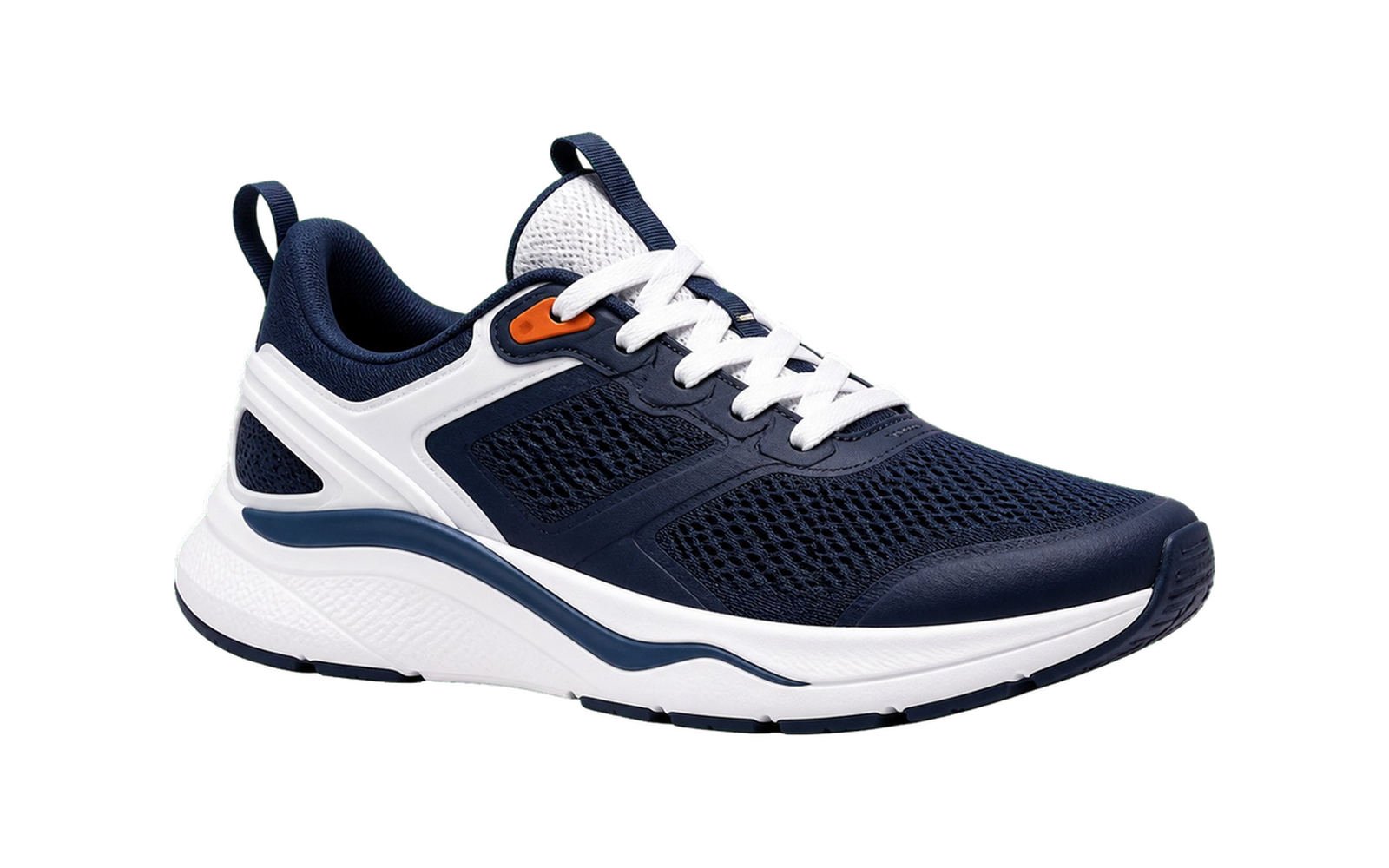
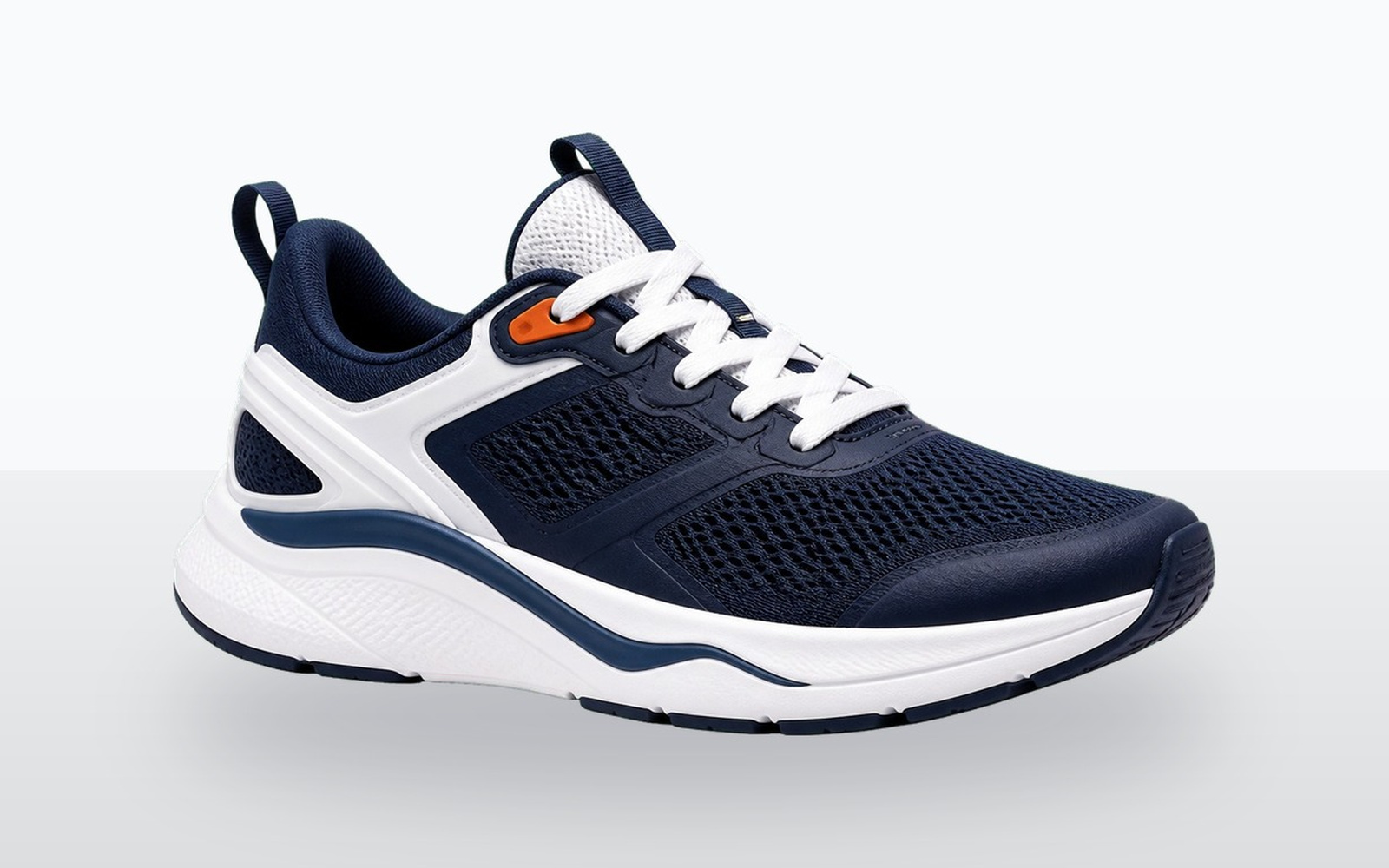
Original
Transparent PNG
연간 50% 할인GPT Image 2 연간 크레딧 50% 할인
Upload an image and remove the background automatically. GPT Image 2 Background Remover creates clean transparent PNG cutouts for product photos, profile pictures, design assets, marketplace listings, and bulk image cleanup.
Compare the difference
Upload, drop, paste, or choose from My Creations. Background removal starts automatically after your image is ready.
How to remove a background
Use this image background remover when you need a clean cutout quickly, whether the source is a product photo, portrait, logo, generated image, or design asset.
Choose a product photo, portrait, logo, generated image, or design asset from your device, clipboard, or drag and drop.
The background remover sends the image for AI processing, detects the main subject, and creates a clean cutout without manual selection.
Export the result as a transparent PNG for ecommerce listings, profile pictures, thumbnails, presentations, social posts, and design layouts.
Use cases
Background removal searches usually come from a concrete task. This page covers the product, profile, ecommerce, design, and batch cleanup jobs people need to finish.
Create clean product cutouts for online stores, marketplace listings, ads, catalogs, and comparison images so the item stays clear and consistent.
Turn portraits into transparent profile images for resumes, social accounts, creator pages, team pages, and avatars that work on any background.
Remove the background from people, products, objects, or generated images, then place the cutout into thumbnails, ads, banners, posts, and covers.
Prepare transparent PNG assets for presentations, landing pages, mockups, posters, stickers, and marketing visuals without manually tracing edges.
Remove a white background or solid color background from simple graphics when you need a transparent logo, icon, or sticker-style asset.
Upload multiple images when you need consistent background removal across a product set, creator library, campaign, or design batch.
Examples
Use the examples below to match the tool to the job you need to finish, whether that is one product cutout or a whole batch of clean assets.

Turn a product photo into a transparent PNG that can sit on white backgrounds, product cards, ads, and marketplace layouts.

Skip manual paths and masks when you just need a clean cutout quickly, then use a desktop editor later for detailed retouching if needed.

Process multiple product or creator assets so a store, campaign, or gallery has a consistent transparent PNG style.
Editor alternative
If you searched for gimp remove background because you do not want to draw paths, refine masks, and export transparency by hand, this online background remover is built for the faster version of that task. Upload an image, inspect the cutout, and download a transparent PNG. GIMP is still a strong choice for precise manual edge work, layer editing, and detailed cleanup. GPT Image 2 is not affiliated with GIMP.
Output
GPT Image 2 Background Remover is built for transparent PNG cutouts. After the background is removed, you can place the subject on a white background, colored background, gradient, banner, product card, marketplace image, or design canvas.
Bulk cleanup
When you need more than one cutout, upload a batch instead of processing every image one by one. Bulk background removal helps keep product listings, campaign assets, marketplace photos, and social media visuals consistent.
Cleaner cutouts
Background removal works best when the subject is easy to separate from the surrounding scene. Use these checks before publishing important assets.
The tool works best when the main object, person, or product is visually distinct from the background.
Motion blur, low resolution, and noisy images can make edges harder to detect, especially around hair, fabric, glass, and small details.
Images with cropped shoes, hands, product corners, or object edges may produce incomplete cutouts.
Hair, transparent objects, reflections, shadows, smoke, and glass may need extra review before publishing the final image.
A sharper source image usually gives the background remover more detail to preserve around the subject.
FAQ
An image background remover detects the main subject in a photo or graphic and removes the surrounding background. The result is usually a transparent PNG cutout that can be used for product photos, profile pictures, thumbnails, design assets, and ecommerce listings.
Upload, drop, paste, or select an image from My Creations. The tool sends it for AI background removal and shows a transparent PNG result with a before and after comparison so you can inspect the cutout before downloading.
Yes. Background Remover is designed to create transparent PNG cutouts, not just images on a white background. You can place the result on product cards, colored layouts, banners, thumbnails, presentations, or design canvases.
Yes. You can remove a white background, solid color background, or simple studio background from many images. Clear subject separation usually produces the best result, especially for product photos, logos, icons, and sticker-style graphics.
Yes. The image background remover is useful for product photos, ecommerce listings, marketplace images, ads, catalogs, and comparison graphics. Review product edges, shadows, glass, and reflective surfaces before publishing important listings.
Yes. Transparent PNG cutouts can be used for ecommerce listings, marketplace photos, product cards, ads, and catalog layouts. Check each cutout against the marketplace rules and inspect the before and after preview before publishing.
Yes. You can process multiple images in one batch, up to the current batch limit shown on the page. Each image is processed as its own task, so one failure does not block the rest of the batch.
You can upload common browser-supported image formats such as JPG, PNG, and WebP. Use a clear source image with the full subject visible for better cutouts, especially around hair, glass, shadows, and fine details.
Background Remover uses 4 credits per image. A 10-image batch uses 40 credits, and failed tasks are refunded when the backend confirms failure.
No. Most clear subjects work well, but complex edges such as hair, transparent objects, motion blur, glass, reflections, or shadows may need review. Use the comparison control to inspect the original and removed-background result.
Hair, glass, shadows, reflections, and transparent objects are difficult because their edges blend into the background. AI can remove many backgrounds quickly, but fine details should be inspected before you use the cutout commercially.
Try a sharper source image where the subject is fully visible and more clearly separated from the background. If the output is for ecommerce, marketplace, or brand use, inspect the transparent PNG carefully before downloading or publishing.
Yes, for quick online cutouts. If you searched for gimp remove background because you need a transparent PNG but do not want to manually draw paths or refine masks, this tool can be faster. GIMP is still useful for precise manual cleanup, layered edits, and advanced retouching. GPT Image 2 is not affiliated with GIMP.
Next steps